Jul 6, 2026FLASH TEAMEst. Read: 26 min

iptv parental controls 2026: child safety, content filtering & family guide

IPTV Parental Controls & Child Safety 2026 — Complete Family Guide

1. why parental controls matter for iptv in 2026

as iptv becomes the primary television source for millions of households worldwide, a new responsibility emerges for parents and guardians. unlike traditional cable or satellite television — which has standardized content rating systems, channel blocking features, and regulatory oversight — iptv operates on a different model. the channel list is expansive, content is uncurated, and adult channels are often listed alongside family programming in the same electronic program guide. for parents who want to protect their children from inappropriate content, understanding and implementing iptv parental controls is no longer optional — it is essential.

the challenge with iptv is structural. when you subscribe to flash 4k iptv, you gain access to thousands of channels spanning every conceivable genre. the channel list includes everything from global news networks and educational documentaries to premium sports and entertainment — and yes, adult content channels are part of the ecosystem because many subscribers expect them. unlike streaming services like netflix or disney+, which have curated libraries with built-in content ratings and profile-based restrictions, iptv presents the full channel list to every user by default. this is not a flaw — it is the nature of the platform, designed to give subscribers maximum choice. but without proper configuration, a child navigating the channel list could stumble into content that is not appropriate for their age.

this guide provides a complete framework for implementing parental controls on your flash 4k iptv setup. we cover four layers of protection: app-level controls within your iptv player, playlist configuration to create kid-friendly channel lists, router-level filtering using dns-based content blocking, and device-level restrictions built into your streaming hardware. by layering these protections, you create a robust safety system that protects your children across all viewing scenarios — whether they are watching on the main television, a tablet in their bedroom, or a secondary streaming box in the playroom.

Family watching television together in a cozy living room, highlighting the importance of IPTV parental controls for child safety at home

2. understanding the risks — what children might access

before diving into technical controls, it is important to understand exactly what types of content risks exist on iptv platforms. the most obvious concern is adult content channels. these are typically grouped under categories like "adult," "18+," "xxx," or similar labels in the channel list. depending on your subscription, there may be dozens or even hundreds of such channels. on an unconfigured system, these channels appear in the same guide as cartoon network and disney channel, often just a few swipes away in the alphabetical or category-based channel browser.

beyond explicit adult content, there are other categories that parents may want to restrict. violence-heavy programming — such as certain action movie channels, hard-edged crime dramas, and unedited horror films — may not have the content rating indicators that traditional tv broadcasts display. unmoderated chat or interactive channels, while less common on iptv, do exist on some platforms and can expose children to inappropriate communication. vod and series libraries often include films and shows that span the full maturity spectrum without the benefit of platform-enforced age gates. a child browsing the vod section could access an r-rated film simply by clicking on its thumbnail.

there is also the risk of accidental exposure through channel surfing. the traditional television experience — where channels are numbered and predictable — does not apply to iptv in the same way. channel numbers can be reassigned, new channels appear regularly, and the guide updates dynamically. a child who memorizes that channel 100 is cartoon network may find that the channel lineup has shifted and channel 100 now displays something entirely different. this fluidity makes relying on channel number-based blocking insufficient — you need content-aware controls that adapt to the evolving channel list.

understanding these risks is not meant to alarm, but to inform. flash 4k iptv provides the tools and infrastructure to manage all of these scenarios effectively. the key is implementing the right combination of controls before handing the remote to your children. with proper configuration, iptv can be a safe, enriching entertainment medium for the entire family — offering educational content, children's programming, and family-friendly movies alongside the sports and news that the adults in the household enjoy. for an overview of how iptv works and what content is available, read our beginner's guide to iptv.
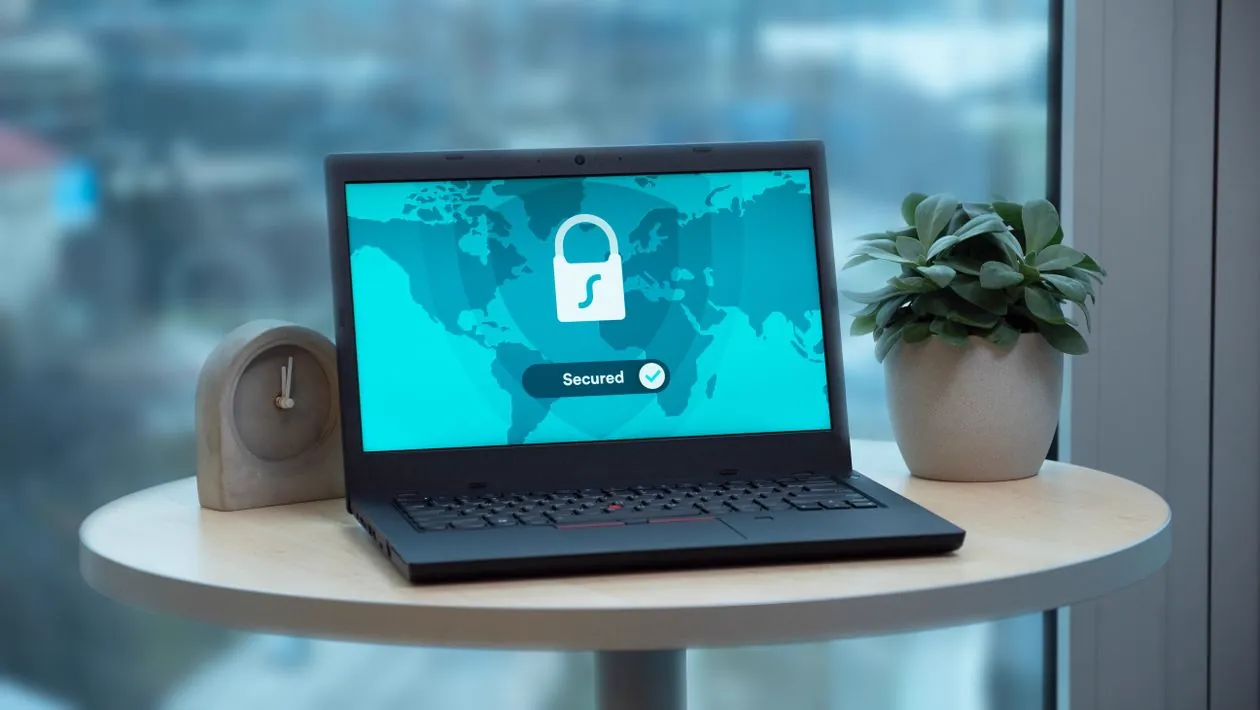
Digital security and parental control interface showing content restriction settings for protecting children on IPTV streaming platforms

3. app-level parental controls — tivimate, iplaytv, and iptv smarters pro

the first and most accessible layer of parental protection is built directly into your iptv player app. the three most popular iptv players — tivimate, iplaytv, and iptv smarters pro — each include parental control features that allow you to restrict access to specific channels, channel groups, or content categories. these controls are password-protected and prevent unauthorized users from changing settings or accessing locked content.

tivimate parental control setup

TiviMate offers the most granular parental control system among IPTV players. Follow these steps to configure it:

  1. Enable Parental Control: Open TiviMate and go to Settings -> Parental Control. Toggle the "Enable Parental Control" switch to ON. You will be prompted to create a 4-digit PIN. Choose a PIN that your children cannot guess — avoid birth years, sequential numbers, or repeating digits.
  2. Lock Channels or Groups: After enabling parental control, navigate to your channel list. Press and hold the OK/Select button on any channel or group to open the context menu. Select "Lock" from the menu. Locked channels display a padlock icon in the guide and require the PIN to view. You can lock individual channels or entire groups — locking an adult content group is much faster than locking channels one by one.
  3. Set Content Restriction Level: In Settings -> Parental Control, you can set a global content restriction level. Choose from: "None" (all channels visible), "Locked Only" (only channels you explicitly locked require PIN), or "All" (every channel requires PIN until unlocked for the session). For family use, "Locked Only" is the recommended setting.
  4. Configure PIN Recovery: TiviMate allows you to set a PIN recovery question. Go to Settings -> Parental Control -> Recovery Question and select a question and answer. This prevents being locked out of your own system if you forget the PIN. Store this information somewhere safe.
  5. Test the Configuration: Exit settings, navigate to a locked channel, and confirm that the app prompts you for the PIN before displaying the channel. Also confirm that unlocked channels play without interruption. Test this with a child present to ensure the flow works as expected in real-world conditions.

iplaytv parental control setup

iPlayTV takes a different approach with user profiles, which is ideal for households with multiple children of different ages:

  1. Create User Profiles: Go to Settings -> Profiles and tap "Add Profile". Create a profile for each family member. Name them clearly — "Parents", "Teen (13+)", "Kids (under 10)" — so it is obvious which profile to select before viewing.
  2. Assign Channel Access: For each profile, select "Visible Channels" and choose which channel groups are available. For the kids' profile, select only children's channels, family movies, cartoon networks, and educational content. Deselect news channels that may show disturbing content and all adult channels automatically.
  3. Set Profile PIN: Enable "Profile Lock" for the parents' profile so that children cannot switch into it. The kids' profile can remain unlocked for easy access. The parents' profile PIN prevents children from changing any settings or accessing restricted channels.
  4. Enable Viewing History: Turn on "Viewing History" in Settings -> Privacy. This logs which channels were watched and for how long, allowing you to monitor your children's viewing activity without being present in the room.

iptv smarters pro offers a simpler parental control system focused on content rating filtering. in its settings menu, you can set a maximum content rating (e.g., pg-13 or equivalent). channels and vod content tagged with a higher rating will require a pin to access. this approach is less granular than tivimate or iplaytv but is easier to set up and sufficient for households where the main concern is preventing access to adult content. for a broader comparison of player features beyond parental controls, see our best iptv players 2026 guide.

Child using a tablet for safe streaming with colorful educational content, representing kid-friendly IPTV playlists and parental content filtering

4. creating a kid-safe channel playlist

one of the most effective strategies for child-safe iptv is to create a dedicated, curated channel list that contains only age-appropriate content. instead of relying solely on locks and pins — which children may observe and eventually circumvent — you give them a completely separate channel lineup that simply does not include adult or mature content. this approach is simpler for young children to navigate and eliminates the risk of them stumbling into restricted content even if the pin system fails.

the method for creating a kid-safe playlist depends on your player app. in tivimate, you can create custom groups. go to the channel list, open the groups menu, and select "Create Group". Name it "Kids TV". then navigate through your full channel list and add appropriate channels to this group — think cartoon network, disney channel, nickelodeon, boomerang, cbeebies, pbs kids, national geographic kids, discovery family, and similar channels. once the group is created, you can set it as the default view so that your child sees only the kids' channels when the app opens.

for households that want completely separate playlists, you can use multiple playlist support in apps like iplaytv. ask your flash 4k iptv provider whether they can generate a filtered m3u playlist that excludes adult channels. some providers offer this as a courtesy — they create a secondary playlist url that contains only the channel categories you specify. you load this filtered playlist into your child's profile, and the restricted channels do not exist in that playlist at all. there is nothing to lock or hide because the content is simply not there.

if your provider does not offer filtered playlists, you can create your own using playlist editing tools. download your m3u playlist from the provider's portal, open it in a text editor or dedicated m3u editor tool, and remove the channel entries that correspond to adult categories. the m3u format is straightforward — each channel entry starts with #EXTINF followed by metadata and then the streaming url. remove the lines for channels you want to exclude, save the file, and upload it to a private url or local server. load this edited playlist into your child's iptv app for a fully curated experience.

curated kid-safe channel categories

preschool (ages 2–5)
  • CBeebies, PBS Kids, Nick Jr.
  • Disney Junior, Cartoonito
  • BabyTV, KidsCo
school age (ages 6–12)
  • Cartoon Network, Disney Channel
  • Nickelodeon, Boomerang
  • Pop, CBBC
educational & documentary
  • Nat Geo Kids, Discovery Family
  • Smithsonian Channel, History
  • Animal Planet, Da Vinci Kids
family entertainment
  • Family Movies, Disney XD
  • Comedy Central (daytime)
  • Movie channels (family filters)

for a comprehensive approach to organizing your channel list across all categories — including creating separate groups for different family members — our channel organization guide provides detailed instructions for tivimate and other players.

5. router-level content filtering with dns

app-level parental controls are effective, but they only protect within the specific app where they are configured. if your child discovers another streaming app, uses a web browser on a smart tv, or switches to a different device on your home network, the app-level controls do not follow them. this is where dns-based content filtering becomes the most powerful tool in your parental control arsenal — it operates at the network level, protecting every device connected to your home internet connection.

dns filtering works by replacing your internet service provider's default dns servers with specialized servers that maintain blocklists of known adult content, malware sites, and other inappropriate domains. when any device on your network tries to access a blocked domain — whether through an iptv app, a web browser, or any other application — the dns server returns a block page instead of the actual content. the device cannot reach the content because it never receives the correct ip address. this happens instantaneously, without any software installation on individual devices.

the most popular family-friendly dns services are cloudflare family dns and opendns family shield. cloudflare family dns uses the addresses 1.1.1.3 (for blocking malware and adult content) and 1.1.1.2 (for blocking malware only). opendns family shield uses 208.67.222.123 and 208.67.220.123. both services are free, require no registration, and update their blocklists automatically as new inappropriate domains are identified. to configure them, log into your router's administration panel, find the dns settings section, and replace the automatic dns entries with the family filter addresses.

dns filtering service comparison

Feature Cloudflare Family DNS OpenDNS Family Shield
Primary DNS 1.1.1.3 208.67.222.123
Secondary DNS 1.0.0.3 208.67.220.123
Adult Content Blocking Yes Yes
Malware Protection Yes Yes
Custom Blocklists No (fixed blocklist) Yes (free account required)
Setup Complexity Minimal — set and forget Minimal — set and forget
Cost Free Free

dns filtering has limitations. it cannot block content served from the same domain as allowed content — for example, if an adult channel stream comes from the same server as family channels, dns filtering cannot distinguish between them. for this reason, dns filtering is best used as a complementary layer alongside app-level controls, not a replacement. it blocks the vast majority of adult websites and streaming sources that children might access through web browsers or other apps, while app-level controls handle the channel-specific restrictions within your iptv player. both Cloudflare's DNS filtering documentation and Cisco OpenDNS family protection guides provide detailed setup instructions for router-level configuration. for more information on securing your home network, see our security and vpn guide for iptv.

router configuration tip: after changing your dns settings to a family filter, restart your router and all connected devices to clear the dns cache. most devices cache dns results for several hours, so the new filtering may not take effect immediately without a restart. you can verify the filtering is active by visiting a known adult website from any device on your network — it should return a block page from your dns provider.

Network router connected to Wi-Fi with DNS filtering configuration for family-safe internet content blocking and IPTV parental control protection

6. device-level parental controls — apple tv, android tv, fire os

each major streaming platform includes built-in parental control features that operate independently of your iptv app. configuring these device-level controls adds another layer of protection and ensures that even if your child finds a way to bypass the app-level restrictions, the operating system itself enforces content and usage limits.

apple tv — screen time

tvOS includes Screen Time, accessible from Settings -> Screen Time. You can set a Screen Time passcode that children cannot bypass. Key features include:

  • Content & Privacy Restrictions — block explicit content, restrict app installs
  • App Limits — set daily time limits for specific apps (e.g., 1 hour for iSTB)
  • Downtime — schedule a period when only allowed apps are available
  • iTunes & App Store Purchases — require password for all downloads
  • Allowed Apps — hide specific apps from the home screen entirely

android tv / google tv

Android TV and Google TV devices support Google Family Link, which manages content across all family devices. Key features include:

  • Content Restrictions — block apps and content by maturity rating
  • Screen Time Limits — set daily usage budgets for the entire device
  • Bedtime Schedule — automatically lock the device during designated hours
  • App Blocking — hide specific apps from the app drawer
  • Purchase Approvals — require parent approval for all app store transactions

amazon fire os

Fire OS includes Amazon Parental Dashboard, accessible from Settings -> Parental Controls. Key features include:

  • Amazon Kids — create a kid-specific profile with curated content only
  • Web Browser Blocking — disable the Silk browser entirely on the child profile
  • Purchase PIN — require a PIN for any in-app or app store purchases
  • Viewing Activity — review what content has been watched on the device
  • Time Limits — set daily screen time budgets and bedtime curfews

device-level controls are particularly important for mobile and tablet viewing. children often watch iptv on ipads, android tablets, or fire tablets in their bedrooms or during car trips. unlike the living room television — which benefits from passive parental supervision — mobile viewing happens outside your direct oversight. configuring screen time limits, content restrictions, and purchase controls on each device ensures that your parental control policies apply everywhere, not just on the main television. for a complete household streaming setup, our multi-device iptv setup guide covers configuration across all platforms.

Screen Time and digital wellbeing interface with a timer icon, representing device-level parental controls with time limits for children on IPTV streaming

7. setting viewing schedules and time limits

content filtering alone addresses the question of what children watch, but it does not address how much they watch. setting reasonable screen time limits for iptv viewing is an essential part of a healthy family media diet. the american academy of pediatrics recommends that children aged 2 to 5 should have no more than one hour of high-quality screen time per day, while older children should have consistent limits that prioritize sleep, physical activity, and other healthy behaviors.

implementing time limits for iptv requires a multi-layered approach. the most effective method is using the built-in screen time controls on your streaming device. on apple tv, go to Settings -> Screen Time -> App Limits and set a daily limit for your iptv app (e.g., 1 hour for iplaytv or istb). on android tv with google family link, you can set a total device usage limit that applies to all activity, including iptv. on fire os, the amazon parental dashboard allows you to set separate time budgets for weekdays and weekends.

for households that prefer a network-level approach, most modern routers include access schedule features. you can configure your router to disable internet access for specific devices during designated hours — for example, block the streaming device in the child's bedroom from 9 pm to 7 am on school nights. this is a blunt but highly effective tool that enforces viewing curfews regardless of which app or service the child tries to use. check your router's documentation for "access control," "parental controls," or "schedule" settings.

a complementary strategy is creating designated viewing zones in your home. keep the primary iptv streaming device in a shared family area like the living room rather than in a child's bedroom. when viewing happens in a common space, you naturally monitor both content and duration without needing technical controls. if children have tablets or secondary devices for their own viewing, establish clear family rules about when and where iptv can be watched, and enforce these rules using the technical controls described in this guide.

sample family viewing policy

weekday rules
  • No IPTV before homework is completed
  • Maximum 1 hour of total screen time
  • Only pre-approved channels (kids' playlist)
  • No viewing after 8 pm on school nights
  • All viewing in shared family room
weekend rules
  • Maximum 2 hours of total screen time per day
  • Can choose from expanded "family" playlist
  • No viewing after 9 pm
  • Outdoor time before screen time
  • One "family movie night" with parent choice

writing down your family viewing policy and displaying it near the television helps children understand the rules and gives you a clear reference when enforcing limits. the technical controls — screen time limits, access schedules, and pin locks — should support the policy rather than replace it. children who understand why limits exist are more likely to accept them, even if they occasionally test the boundaries.

Family home entertainment system with modern living room setup, illustrating scheduled viewing times and balanced screen time for children using IPTV

8. monitoring viewing activity

monitoring your children's iptv viewing activity serves two purposes. first, it confirms that your parental control configurations are working correctly — if your child should only have access to the kids' playlist, the viewing history will show whether they are staying within those channels. second, it provides insights into your child's interests and viewing habits, which can inform conversations about media choices and help you discover new educational or age-appropriate content to add to their playlist.

most iptv player apps include some form of viewing history or watch log. in iplaytv, enable viewing history in Settings -> Privacy -> Viewing History. this log records every channel watched, the duration of each viewing session, and the timestamp. you can review this log at any time from the same settings menu. in tivimate, viewing statistics are available through the "Statistics" option in the main menu, which shows total watch time, most-watched channels, and viewing patterns by time of day. in iptv smarters pro, the "Recent" tab shows the last 50 channels or vod items accessed from the account.

for more comprehensive monitoring, you can use router-level logging. most routers maintain a connection log that shows which devices accessed which destinations. while these logs are technical and require some effort to interpret, they provide an unfiltered record of all network activity from your child's streaming device. you can also enable dns query logging on routers that support custom firmware like dd-wrt, openwrt, or asuswrt-merlin. dns logs show every domain name that devices on your network have tried to resolve, giving you visibility into any attempts to access restricted content.

it is important to balance monitoring with trust. the goal is safety, not surveillance. explain to your children — at an age-appropriate level — that you are checking what they watch to make sure it is suitable for them, not to spy on every choice they make. as children grow older and demonstrate responsible viewing habits, you can gradually relax monitoring while maintaining the underlying safety controls. open communication about media choices builds digital literacy skills that will serve your children well as they navigate an increasingly connected world.

privacy note: viewing history logs are stored locally on your device or within your iptv app's data. Flash 4K IPTV does not track, store, or share your family's viewing habits. All monitoring described in this section is performed locally on your own hardware and network equipment, giving you full control over your family's privacy data.

9. best practices and common mistakes

implementing iptv parental controls is not a one-time setup — it requires ongoing attention as your channel list changes, your children grow older, and new devices enter your home. the following best practices will help you maintain effective family protection over the long term, while the common mistakes section highlights pitfalls that can undermine even the most carefully configured system.

best practices

  • layer your protections: do not rely on a single method. combine app-level PIN locks, a curated kid-friendly playlist, router-level DNS filtering, and device-level screen time controls. each layer covers scenarios where another layer might fail, creating a robust safety net.
  • review controls monthly: IPTV channel lists change frequently — new channels are added, old ones are removed, and adult content categories may shift. Set a recurring calendar reminder to review your parental control settings every 30 days. Verify that locked channels are still locked and that the kids' playlist still contains only appropriate content.
  • test from a child's perspective: periodically sit down with the remote and try to navigate the channel list as your child would. Attempt to access restricted content. Try to guess the PIN. Try to bypass the kids' profile. This hands-on testing reveals gaps that configuration reviews might miss.
  • involve older children in the conversation: teenagers are often technically capable enough to bypass parental controls if they are motivated. Instead of relying solely on technical restrictions, have an open conversation about why certain content is restricted. Explain your values and expectations. Teenagers who understand the reasoning behind the rules are less likely to try circumventing them.
  • use a separate streaming device for children: if your household has multiple streaming devices, designate one device exclusively for children's use. Configure it with the kids' playlist, enable DNS filtering, set strict screen time limits, and do not save the parental control PIN on that device. This creates a clean separation that is easier to manage than sharing a single device.

common mistakes to avoid

  • using an easy-to-guess PIN: birth years, sequential numbers (1234), repeating digits (1111), or obvious patterns are the first combinations children try. Use a random 4-digit PIN that has no personal significance. Write it down and store it somewhere only adults can access.
  • forgetting to update controls after playlist changes: when your IPTV provider adds new channels, they may appear in unclassified categories that bypass your group-based locks. After every channel list update from your provider, review the new additions and lock or move any that are not child-appropriate.
  • relying on channel numbers for blocking: IPTV channel numbers are not permanent. Providers reorganize lineups, and channel numbers can shift. Always lock channels by name or group, not by channel number. A channel that is safe at position 105 today could be reassigned to an adult channel tomorrow.
  • ignoring the vod and series libraries: parental controls often focus on live TV channels, but the VOD and Series sections of your IPTV subscription also contain adult content. Ensure your player's parental controls extend to all content areas, not just live channels. In TiviMate, this means enabling "Lock VOD" and "Lock Series" in the parental control settings separately.
  • assuming one configuration covers all devices: parental controls configured on the living room Apple TV do not apply to the Fire tablet in your child's bedroom or the Android TV box in the playroom. You must configure controls on every device that your child might use to access IPTV. Use DNS filtering at the router level as a safety net for any device you might have missed.
Parent guiding a young child on safe digital media consumption, representing the importance of active parental involvement in IPTV safety and monitoring

frequently asked questions (faq)

does flash 4k iptv include parental controls?

Flash 4K IPTV provides the channel infrastructure that works with parental control features in compatible IPTV player apps. Apps like TiviMate, iPlayTV, and IPTV Smarters Pro include built-in parental controls that allow you to PIN-lock specific channels, hide entire channel groups, and restrict access to adult content. Combining these app-level controls with router-level DNS filtering provides comprehensive family protection. There is no separate "family plan" toggle — the controls are implemented through the player app and network configuration you choose.

how do i block adult channels on iptv?

To block adult channels on IPTV, use your player app's parental control settings. In TiviMate, go to Settings -> Parental Control and enable PIN protection, then mark adult channel groups as locked. In iPlayTV, use the Groups management screen to hide entire categories. For an additional layer of protection, configure DNS filtering on your router using Cloudflare Family DNS (1.1.1.3) or OpenDNS Family Shield to block adult content at the network level. This dual approach ensures protection even if the app-level controls are bypassed.

can i create a separate kid-friendly channel list?

Yes, most IPTV player apps support creating custom channel groups or favorites lists. You can create a dedicated "Kids" group containing only child-appropriate channels — cartoon networks, educational channels, family movie channels, and children's programming. In TiviMate, create a custom group by going to the channel list menu and selecting "Create Group". In iPlayTV, user profiles allow you to assign different visible channels to each family member. This approach gives children access to age-appropriate content while keeping the full channel list password-protected.

what is dns filtering and how does it help?

DNS filtering works by routing your internet traffic through specialized DNS servers that block access to known categories of websites and services. Cloudflare Family DNS (1.1.1.3) and OpenDNS Family Shield (208.67.222.123) automatically block adult content, malware sites, and other inappropriate material at the router level. This affects all devices on your network, including IPTV streams that pull content from blocked sources. It is a set-and-forget solution that requires no individual app configuration and provides a safety net for any device you may have overlooked.

can i set viewing time limits for my children?

Yes, you can implement viewing time limits at multiple levels. On Apple TV, use Screen Time in tvOS to set daily app limits for IPTV apps. On Android TV or Fire OS, use Google Family Link or Amazon Parental Dashboard to restrict viewing hours. At the router level, you can configure access schedules that disable internet access for specific devices during designated hours — for example, blocking the streaming device from 9 pm to 7 am. Combining device-level and network-level time controls provides the most reliable implementation.

does flash 4k iptv offer a family plan?

Flash 4K IPTV subscription plans support multiple simultaneous connections, which allows different family members to watch different channels on different devices at the same time. By combining multi-connection support with user profiles in apps like iPlayTV, each family member can have their own filtered channel lineup. You do not need a separate "family" subscription — your existing plan with multiple connections already supports this setup. Contact our support team to discuss which plan best fits your household size and viewing needs.

are parental controls available on all iptv apps?

No, not all IPTV apps include parental control features. Basic or free IPTV apps often lack content restrictions entirely. We recommend using one of the premium apps — TiviMate, iPlayTV, or IPTV Smarters Pro — which include the most comprehensive parental control systems on each platform. TiviMate offers PIN-locked channels and groups, iPlayTV provides user profiles with per-profile channel visibility, and IPTV Smarters Pro includes content rating filtering. See our best IPTV players guide for a full comparison of each app's parental control features.

how do i monitor what my children watch on iptv?

Most IPTV player apps include viewing history features. In iPlayTV, enable Viewing History in Settings -> Privacy to log all channels watched. In TiviMate, the Statistics menu shows watch time and most-viewed channels. For network-level monitoring, your router's connection log shows all destinations accessed by each device. We recommend periodic review of viewing history rather than constant real-time monitoring — the goal is to verify that your parental controls are working correctly and to understand your child's content interests, not surveillance.

conclusion

keeping your family safe while enjoying the incredible breadth of content that flash 4k iptv offers is entirely achievable with the right combination of tools and practices. by implementing app-level parental controls in your chosen player, creating a curated kid-safe channel playlist, enabling dns-based content filtering at your router, and configuring device-level screen time limits, you create multiple layers of protection that work together to safeguard your children. the key is not to view parental controls as a one-time configuration, but as an ongoing practice — review your settings monthly, test them from your child's perspective, and have open conversations with your children about media choices. iptv can be a wonderful source of education, entertainment, and family connection when managed thoughtfully. the FCC's parental control guidelines provide additional recommendations for managing children's media consumption, and Common Sense Media offers age-based content reviews to help you choose appropriate programming. for more information on securing your entire streaming setup, read our security and vpn guide for iptv, and for step-by-step setup instructions, revisit our ultimate iptv setup guide 2026.

further reading

flash 4k iptv — safe streaming for the whole family.

GOT QUESTIONS?

Flash 4K IPTV is a premium IPTV streaming service offering live TV channels, sports, movies, series, and 4K entertainment content worldwide.
Flash 4K IPTV supports Smart TVs, Samsung TV, LG TV, Android TV, Firestick, Apple TV, Android Boxes, Smartphones, Tablets, and PC.
Activation is almost instant. Most customers receive their Flash 4K IPTV access details within 15 to 30 minutes after payment.
Yes. Flash 4K IPTV is available worldwide and works anywhere with a stable internet connection.
We recommend at least 12 Mbps for HD streaming and 25 Mbps or more for smooth 4K streaming.
You can install Flash 4K IPTV on multiple devices, but simultaneous viewing depends on your subscription plan.